Shape a clip in Inspector
Position, colour, key or mask a selected deck clip with its Clip Settings.
Why use it
Use this to fit a clip into a composition, match its look or remove part of its image.
Do this
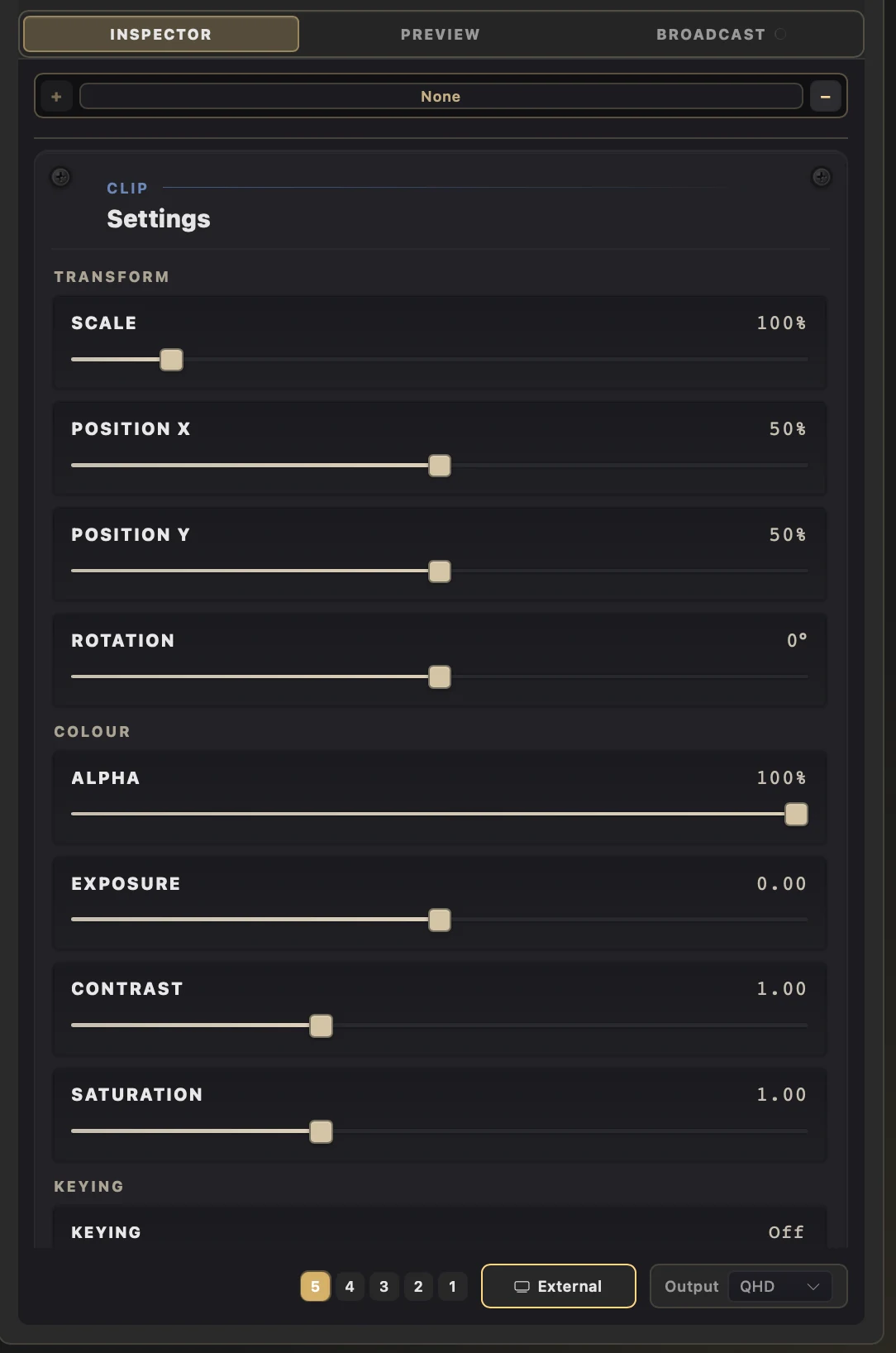
- 01Select any non-empty clip in the deck. Inspector shows controls for that clip; movie clips also have Speed and Loop, One Shot - Hold or One Shot - Clear above Settings.
- 02Under Transform, use Scale to resize the clip, Position X and Position Y to place it, and Rotation to turn it.
- 03Under Colour, use Alpha for the clip's transparency, Exposure for brightness, Contrast for tonal separation and Saturation for colour intensity.
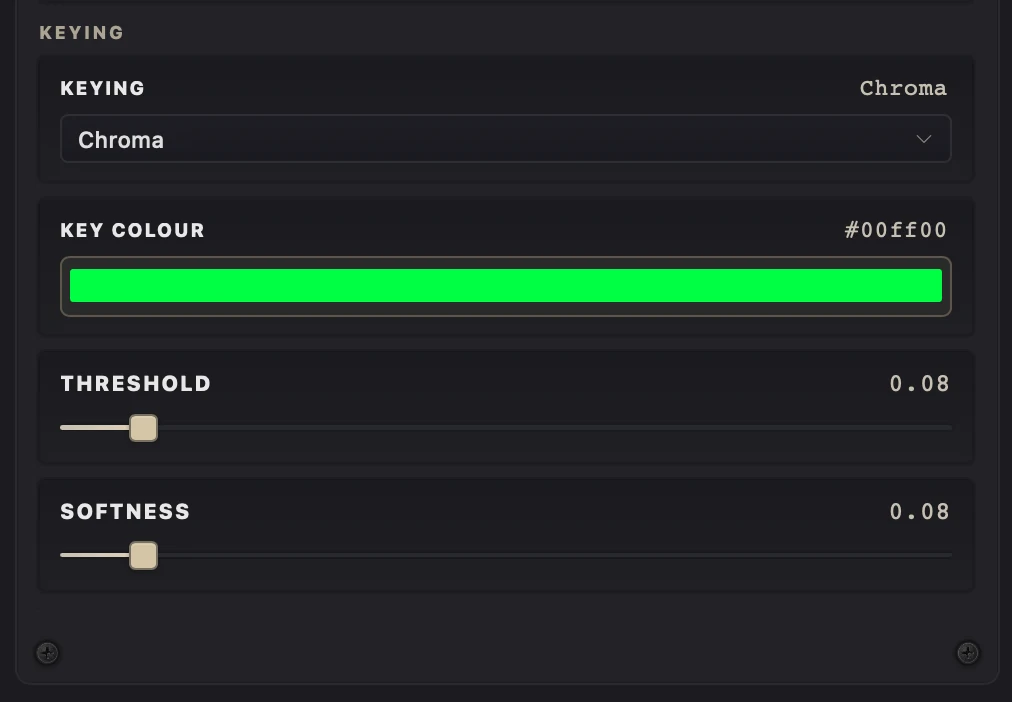
- 04Under Keying, choose Luma to mask by brightness or Chroma to remove a chosen Key Colour. Raise Threshold to remove more of the image, then use Softness to feather the edge.
- 05Most of these parameters can also be animated with Vūdl scripts instead of staying fixed.