Find media in the Library
Filter a busy Library by type, source, name, capability or modified date.
Why use it
Find the clip, shader or preset you want without scrolling through everything.
Do this
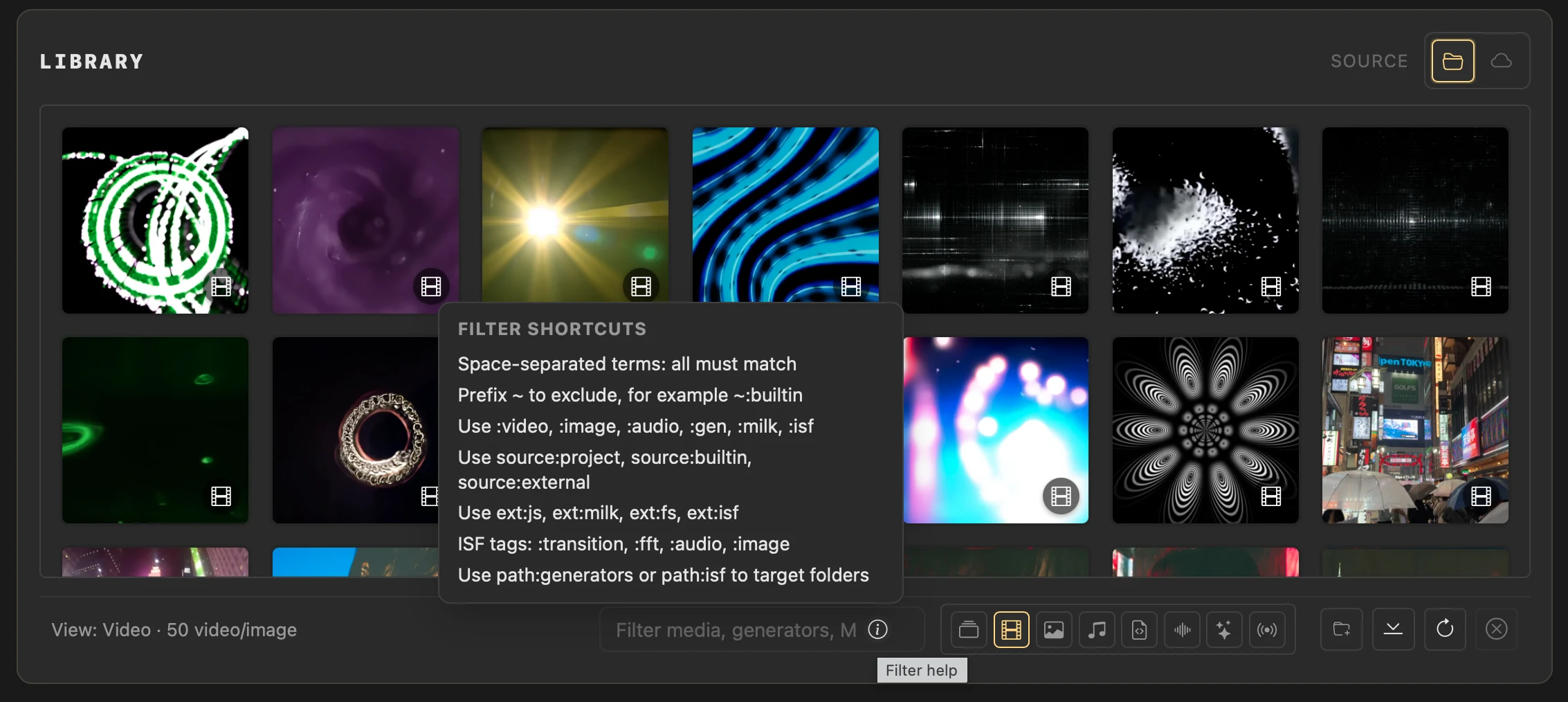
- 01Use the media-type icons beside the filter to show All media or one kind. Hover an icon to see its name, then type words from a name or details; every word must match.
- 02Open Filter help for the shortcut list. Combine shortcuts such as :video :project, or prefix any term with ~ to exclude it. :shader :fft finds shaders that read spectrum data.
- 03Use :date=today, :date=week or :date=3d for recent changes. Use :date=oct for the most recent October, or :date=oct-2025 for October 2025.
- 04Select a result to preview it, or drag it into your deck.
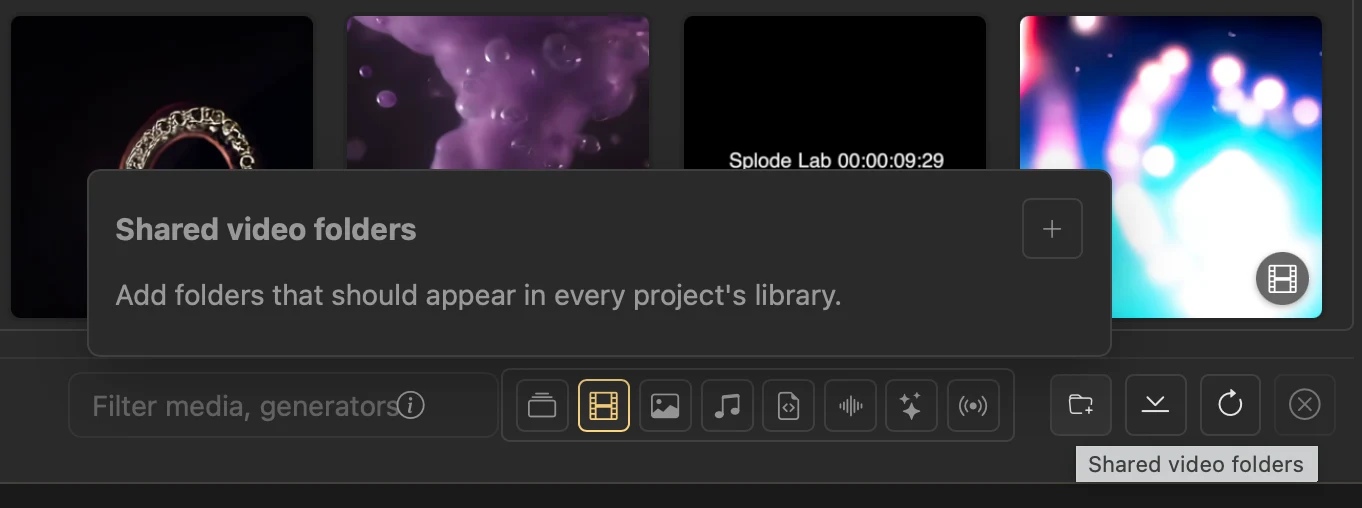
- 05If a video collection is missing, choose Shared video folders, then Add folder and select it. Its videos appear as External media and stay in their existing folder.