Sync to Mixxx on Mac
Make a MIDI connection point that Mixxx and Splode Lab can both use.
Why use it
Keep the deck on Mixxx's BPM and beat while you perform.
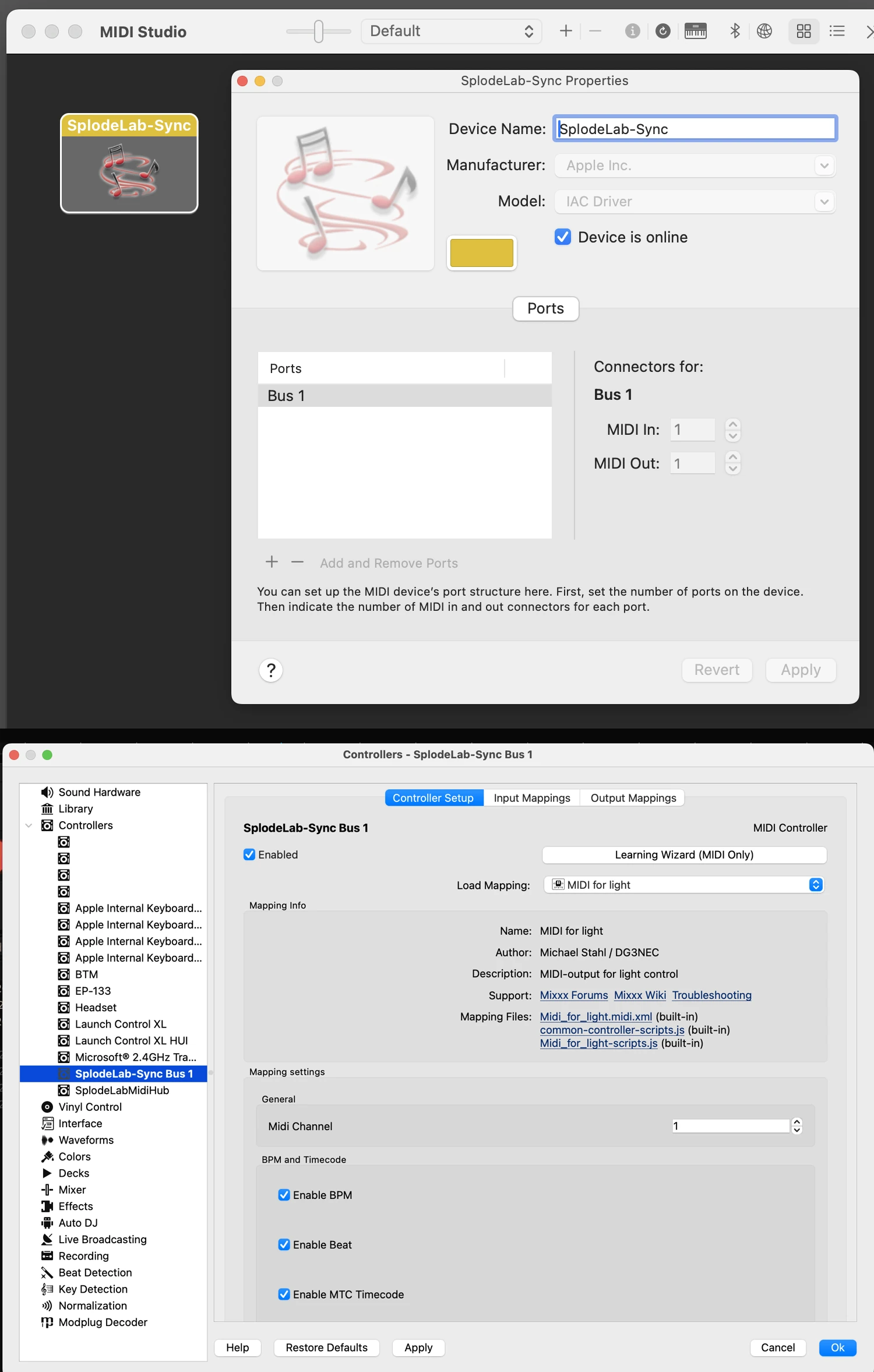
Do this
- 01Open Audio MIDI Setup, choose Window > Show MIDI Studio, then open IAC Driver.
- 02Add a bus named SplodeLab-Sync and turn on Device is online.
- 03In Mixxx Settings > Controllers, choose SplodeLab-Sync Bus 1, enable it and load MIDI for light.
- 04Turn on Enable BPM, Enable Beat and Enable MTC Timecode, then apply the settings.
- 05In Splode Lab, set Clock to MIDI and choose SplodeLab-Sync Bus 1. Look for SYNC.