Get sharper output
Choose proxy and output quality to suit your screen, GPU and storage.
Why use it
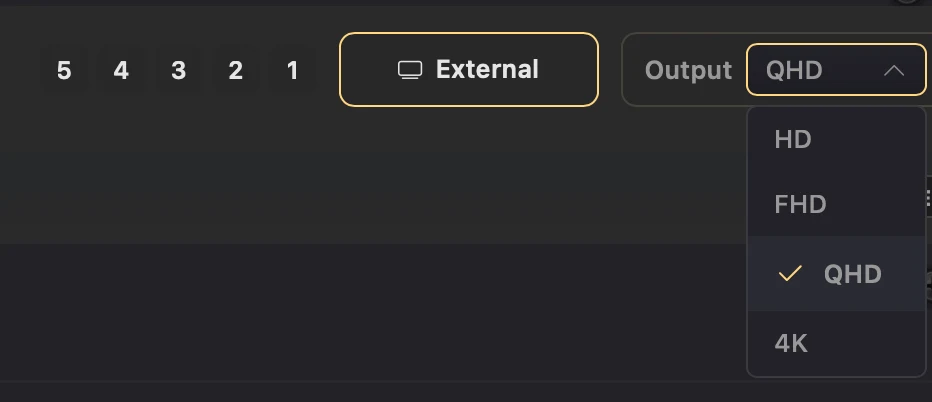
QHD is the sweet spot for a sharper large-screen image without jumping to 4K.
Do this
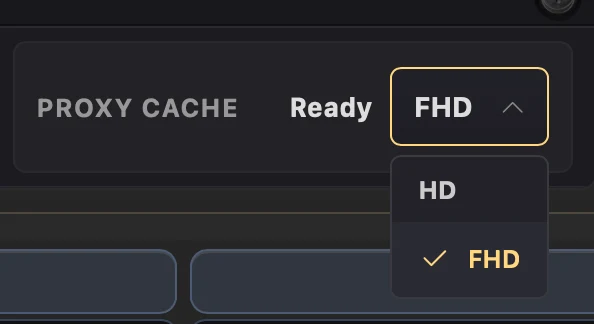
- 01Leave Proxy Cache at HD for a good balance of quality, speed and space. Choose FHD when fine video detail matters and your machine has the headroom.
- 02Add the clips you plan to use before a show and wait for Proxy Cache to show Ready. You can still add one live: the current look keeps playing while it prepares.
- 03Use the phone-orientation button beside External to switch between Landscape and Portrait. Portrait FHD renders a native 1080×1920 frame for Instagram Reels and other vertical video.
- 04Choose Output below Monitor: HD, FHD, QHD or 4K. QHD is a sharp large-screen balance; FHD is the practical portrait recording choice. In Portrait, the bounding-box button over Monitor shows a safe-area guide that never appears in External or Broadcast output.
- 05Effects render at the selected Output size, while smaller video proxies scale to fit. Splode Lab accepts MP4, MOV (including HAP and DXV), AVI, MKV and WebM; use keying when you need transparency.