Install Splode Lab Live on Windows
Download the Windows installer, get past the download and launch warnings, and open Splode Lab Live.
Do this
- 01Download for Windows from splodelab.com. Quit Splode Lab Live first if you are updating.
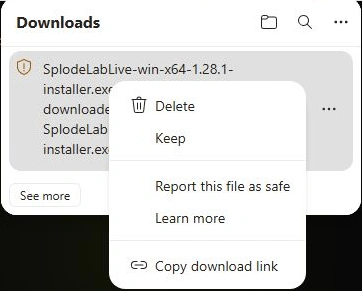
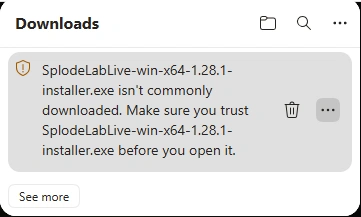
- 02In Microsoft Edge, if the download says it isn't commonly downloaded, open Downloads, hover over the file and choose …, then Keep. Choose Show more, then Keep anyway. Wait for the download to finish. If you don't see a warning, continue to the next step.
- 03Open the downloaded installer. If Windows shows Windows protected your PC, choose More info, then Run anyway. The Windows installer is currently unsigned, so Windows may show Unknown publisher. These steps are for the installer you downloaded from splodelab.com; don't continue if the file or source is unexpected.
- 04Follow Setup and choose whether to create a desktop icon. Launch Splode Lab Live when setup finishes.
If Setup asks for WebView2
Splode Lab Live uses the Microsoft Edge WebView2 Runtime for its interface.
WebView2- Choose Yes to open Microsoft's download page. Setup exits; install the runtime, then run the Splode Lab Live installer again. If you choose No, install the runtime before rerunning Setup.