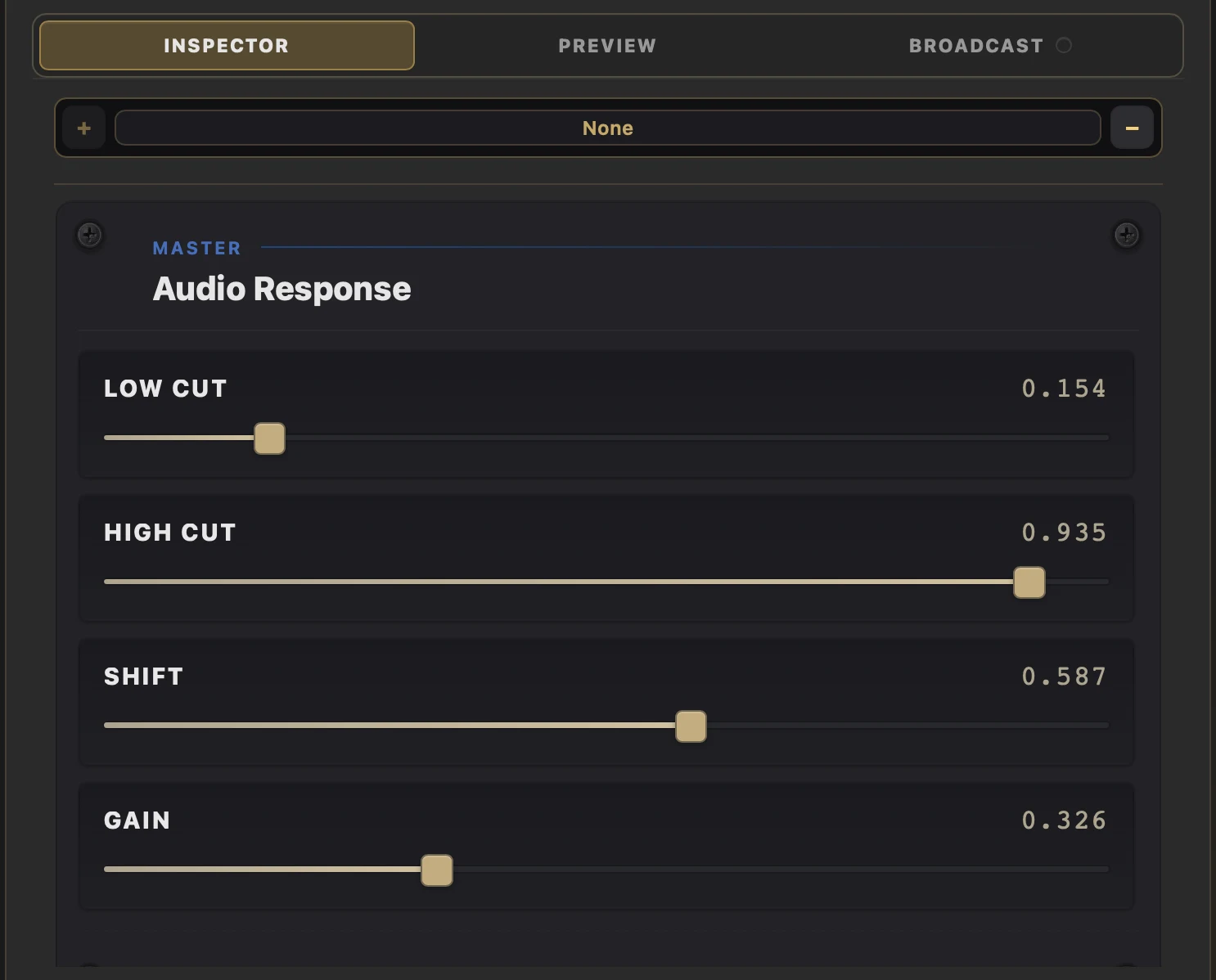
Tune audio-reactive visuals
Shape the master FFT response so visuals follow the frequencies and intensity you want.
Why use it
Use this when bass overwhelms the image, high frequencies feel noisy, or the reaction is too weak or strong.
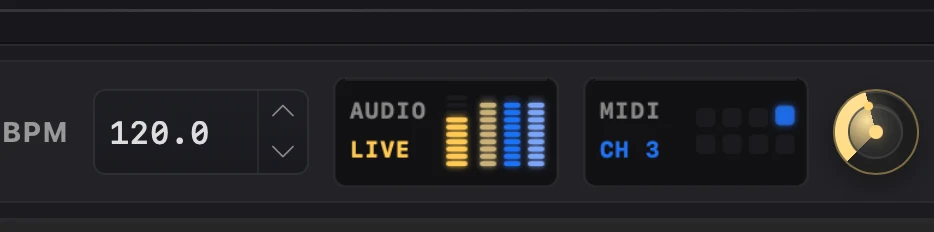
Do this
- 01Choose the Audio source you want Splode Lab to hear, then play an audio-reactive visual.
- 02Click the AUDIO activity meter in the control strip. Master Audio Response opens in Inspector.
- 03Raise Low Cut to remove more bass from the response. Lower High Cut to remove more treble.
- 04Move Shift left to move the response toward lower frequencies, or right toward higher frequencies.
- 05Move Gain left for a gentler reaction or right for a stronger one. Every FFT-driven visual updates immediately for the current app session.