Write Vūdl for a deck, stack or cell
Script a deck's playback or shape a stack and its individual cells in Vūdl Live Studio.
Why use it
Use it to make timed changes repeatable across a song or a complete look.
Do this
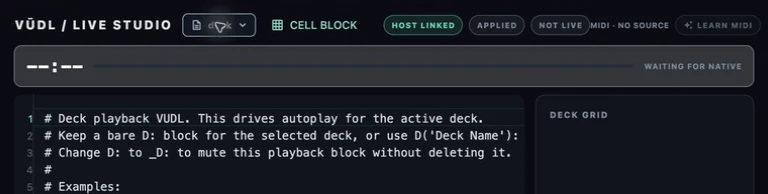
- 01Choose Open Vūdl Live Studio in the app title bar. Use Studio's document selector to open the deck script, an existing stack script, or Create stack for a numbered stack.
- 02Edit the deck document when you want it to launch stacks or clips on a timeline. Choose Deck playback On beside the deck picker to start it, or Off to stop it. The control shows which deck is running while you browse other decks.
- 03Edit a stack document when you want to shape the look triggered by that stack. Apply your changes, then trigger the stack from the deck or Stage to use its script.
- 04For one grid position, choose Cell Block in Studio, then pick a layer and stack. Studio opens or inserts that cell's block in the current document. The block belongs to that position rather than a clip, so its badge can appear on an empty cell.
- 05Choose Apply to save your script. Vūdl badges on the deck show where stack scripts and cell blocks are written; Studio's live status shows which document is performing.